OpscotchAdmin Guide
sunforce.opscotch.app

Understanding the Disposition System

What dispos are, how they work, and what each one means
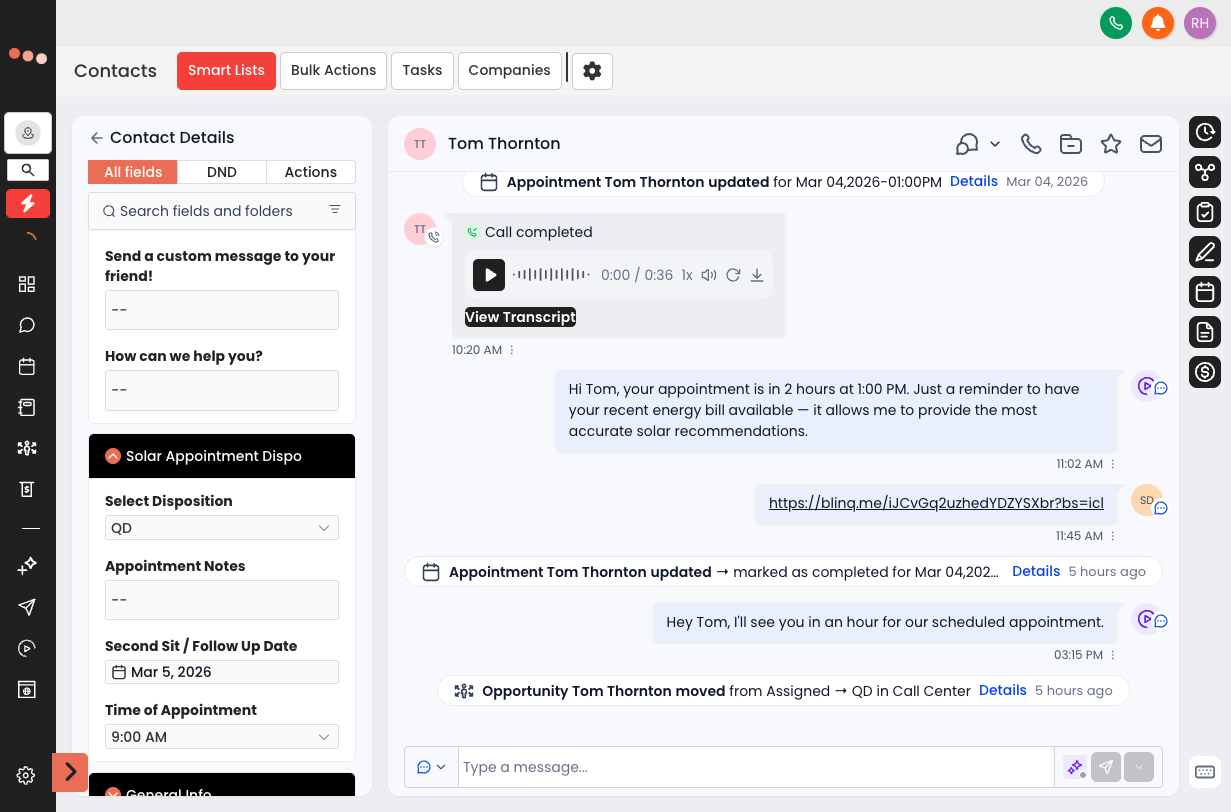
A disposition (or โ€˜dispoโ€™) is the outcome a rep selects after every contact attempt with a lead. When a rep selects a dispo, the system handles the follow-up automatically.
๐ŸŸข CLOSES IT
The conversation has a definitive outcome
SoldDeal is closed. Contract signed.
DQLead does not qualify (renter, bad credit, etc.)
Not InterestedLead was reached but clearly doesn't want solar
Pitch MissRep was unable to pitch โ€” lead left before presentation
Credit FailLead failed credit screening
Has SolarLead already has a solar system installed
RADLead is unreachable and has been exhausted
โš  These dispos close the active opportunity and stop most follow-up sequences. Only use them when the outcome is final.
๐ŸŸก KEEPS IT OPEN
The lead is still active, next steps are queued
QDLead qualifies. Documents submitted. Awaiting next step.
Second Sit SetA second appointment has been scheduled
Reschedule NeededLead asked to reschedule โ€” new time not yet confirmed
CanceledLead canceled their appointment
No ShowLead did not show up for their scheduled appointment
No AnswerCalled the lead, no one picked up
โš  These dispos keep the opportunity open and queue up automated touches.
๐Ÿ”ต SPECIAL
Unique situations
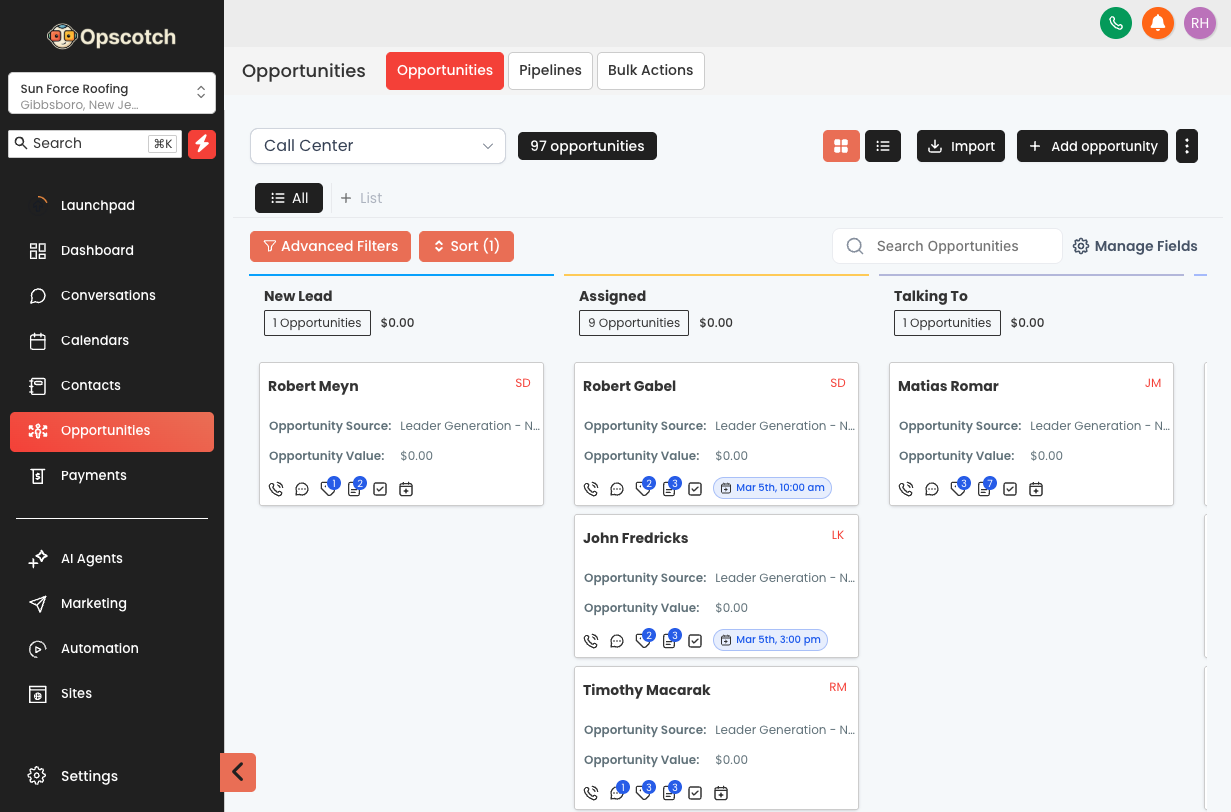
Talking ToRep is currently in an active conversation with the lead
Installed (Review Blast)Install is complete โ€” triggers a review request to the homeowner
Rules Every Rep Must Follow
1Every call gets a dispo. No exceptions. If a lead is not dispositioned, nothing happens next โ€” the lead sits and goes cold.
2Use the most accurate dispo. "No Answer" and "Hung Up" are different outcomes. Accuracy matters.
3Don't use DQ as a trash can. DQ means the lead genuinely doesn't qualify. If you're just done with a lead, that's different.
4Sold means done. Once you mark Sold, the system routes the lead into the next phase. Don't use it until the paperwork is real.

Lead Confirmations

Automatic texts sent after booking

When a rep books an appointment in Opscotch, the system automatically sends the lead two text messages. The rep doesnโ€™t have to do anything โ€” itโ€™s fully handled.

๐Ÿ“ฑ Sent Immediately After Set

As soon as the rep marks the appointment booked, the lead receives a confirmation SMS including the appointment date/time and instructions to have a recent electric bill ready.

โ€œHi [Name]! You're confirmed for your Sunforce consultation on [Day] at [Time]. Please have a recent electric bill handy. See you then! โ€” Sunforce Teamโ€
โฐ Sent 2 Hours Before

Two hours before the appointment, the lead automatically receives a reminder SMS. This reduces no-shows without the rep doing anything manually.

โ€œHey [Name], just a reminder โ€” your Sunforce appointment is in 2 hours at [Time]. Looking forward to speaking with you!โ€
๐Ÿ’ก
As an admin, you donโ€™t need to do anything for these to fire. They are automatic. If a lead reports they didnโ€™t receive a message, check: (a) their phone number is correctly entered, and (b) the appointment was actually booked โ€” not just calendared manually.

Creating a New User Account

Onboarding a new rep or team member into Opscotch

Do this whenever youโ€™re onboarding a new rep or team member into Opscotch.
1.
Log into Opscotch and make sure youโ€™re inside the Sunforce sub-account (not the agency dashboard).
2.
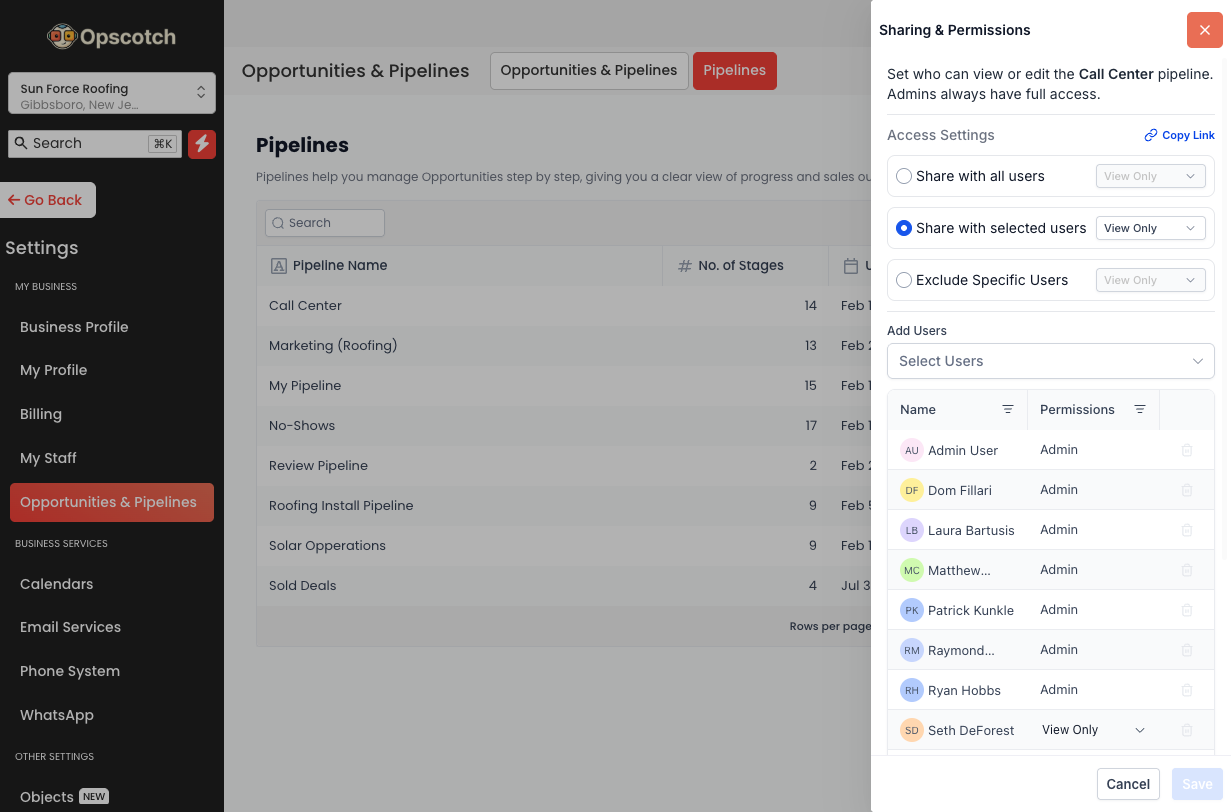
In the left sidebar, scroll down and click Settings (gear icon at the bottom).
3.
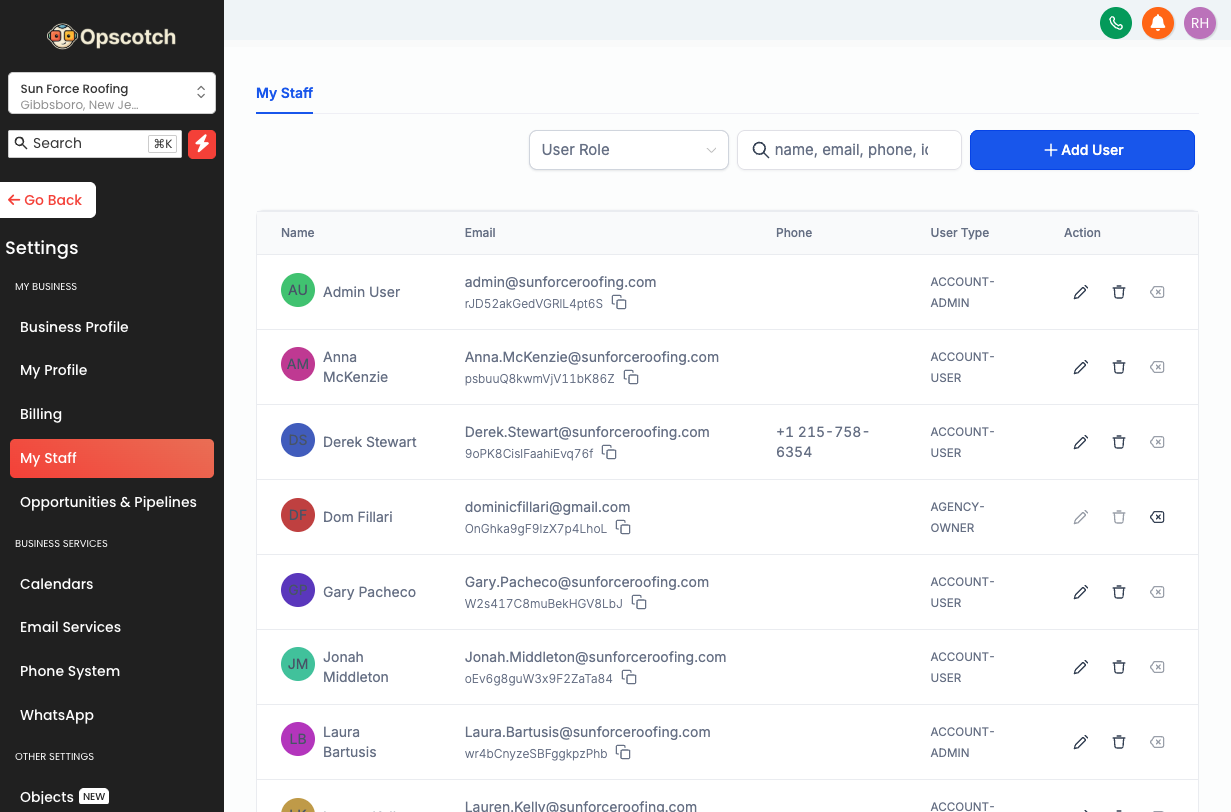
Click My Staff.
4.
Click + Add Employee in the top right.
5.
Fill in the userโ€™s details โ€” First/Last Name, Email Address (their login), Phone Number (optional), Role (Admin = full access for managers only / User = limited access for reps).
6.
Set their Permissions. For a standard rep: โœ… Conversations โœ… Contacts โœ… Calendars โœ… Opportunities โ€” โŒ Workflows โŒ Settings
7.
Toggle โ€œOnly Assigned Dataโ€ to ON so the rep only sees leads assigned to them (recommended for all reps).
8.
Click Save. The new user will receive an email invitation to set up their password.
โš 
If the rep says they didnโ€™t get the invite email: Check their spam folder first. If itโ€™s not there โ€” Settings โ†’ My Staff โ†’ find the user โ†’ three-dot menu โ†’ Resend Invite.

Linking a Rep's Google Calendar

Enable conflict checking and two-way sync

Every rep should link their personal Google Calendar to Opscotch. This enables conflict checking (wonโ€™t double-book) and two-way sync (appointments appear in Google automatically).
โš 
This must be done by each rep from their own account. You cannot do it for them from your admin account.
1.
Rep logs into Opscotch โ†’ click Calendars in left sidebar.
2.
Click Calendar Settings (top-right area).
3.
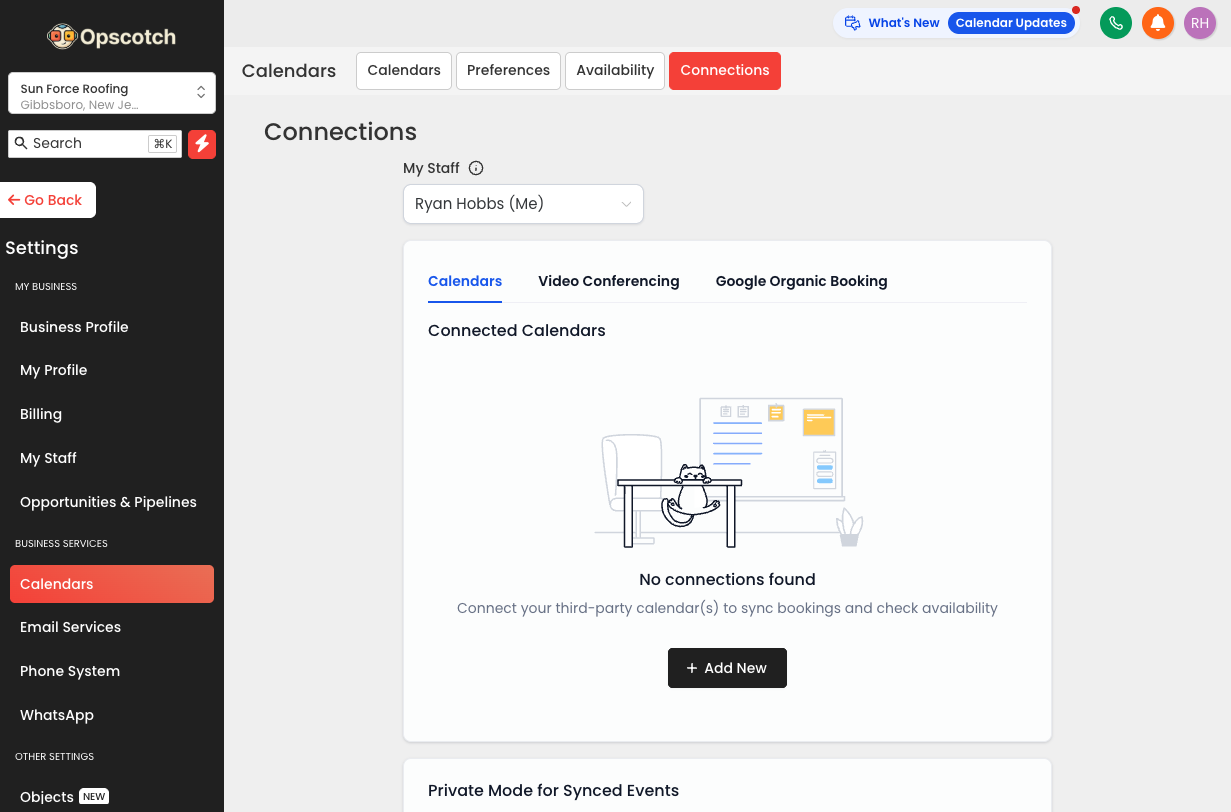
Click the Connections tab.
4.
Click + Add New โ†’ select Google.
5.
Google sign-in window opens. Rep signs in and clicks Allow on ALL permission requests. (Must click โ€œAllow Allโ€ โ€” if they skip Calendar write permission, events wonโ€™t sync.)
Setting A โ€” Linked Calendar
10.
Calendar Settings โ†’ Linked Calendar โ†’ Add โ†’ select the repโ€™s Google Calendar โ†’ Save. This is where Opscotch writes new appointments.
Setting B โ€” Conflict Calendar
11.
Calendar Settings โ†’ Conflict Calendars โ†’ Add โ†’ select ALL calendars to block availability from โ†’ Save.
๐Ÿ’ก
The Linked Calendar is automatically added as a Conflict Calendar โ€” so anything booked through Opscotch is immediately blocked. You typically only need to manually add additional personal calendars.
Troubleshooting
ProblemFix
Events not showing in GoogleCheck Linked Calendar is set. Make sure writer access was granted.
Rep is getting double-bookedMake sure personal calendar is added as Conflict Calendar
Integration shows red bannerClick Reconnect and re-grant all permissions
Wrong Google account connectedDisconnect, log out of all Google accounts, reconnect with right one

Syncing a Rep's Email

Keep all lead email conversations inside Opscotch

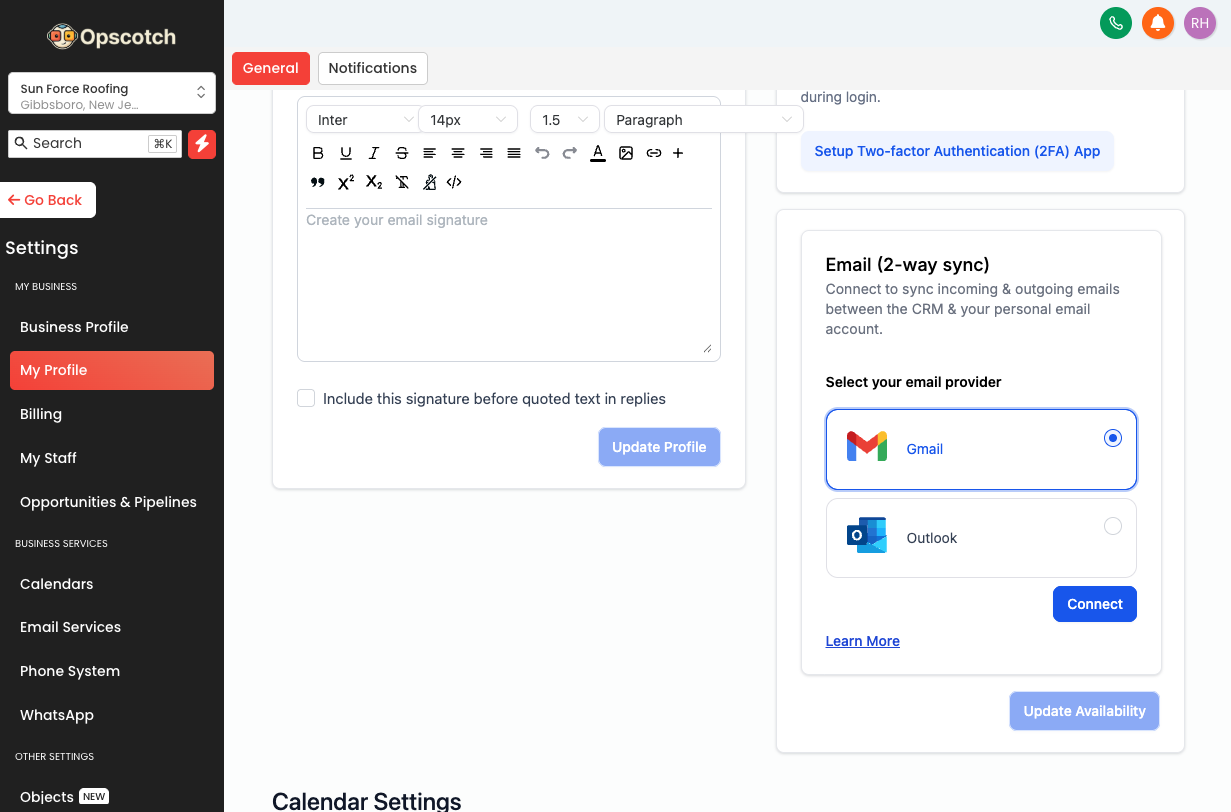
Syncing a repโ€™s email allows all email conversations with leads to appear inside Opscotch. Everything stays in one place.
โš 
Same rule as calendar โ€” each rep must do this from their own account.
1.
Rep logs into Opscotch โ†’ Settings (bottom-left sidebar).
2.
Click My Profile.
3.
Scroll to Email (2-Way Sync) section.
4.
Click Gmail โ†’ Connect.
5.
Google sign-in โ†’ allow all requested permissions.
6.
Once connected, the repโ€™s email appears confirmed. Emails sent from Opscotch show in Gmail Sent. Replies from leads show in Opscotch conversations.
How It Works
What HappensWhere It Shows
Rep sends email from OpscotchGmail Sent + Opscotch conversation
Lead replies to repInside Opscotch conversation thread
Rep emails directly from GmailAlso syncs into Opscotch
๐Ÿ’ก
The BCC trick: If a rep emails a lead directly from Gmail, they can BCC the Opscotch BCC address to force it into the CRM. Find the BCC address in Settings โ†’ My Profile โ†’ Email section.

Buying a Phone Number

Give every rep their own dedicated Opscotch number

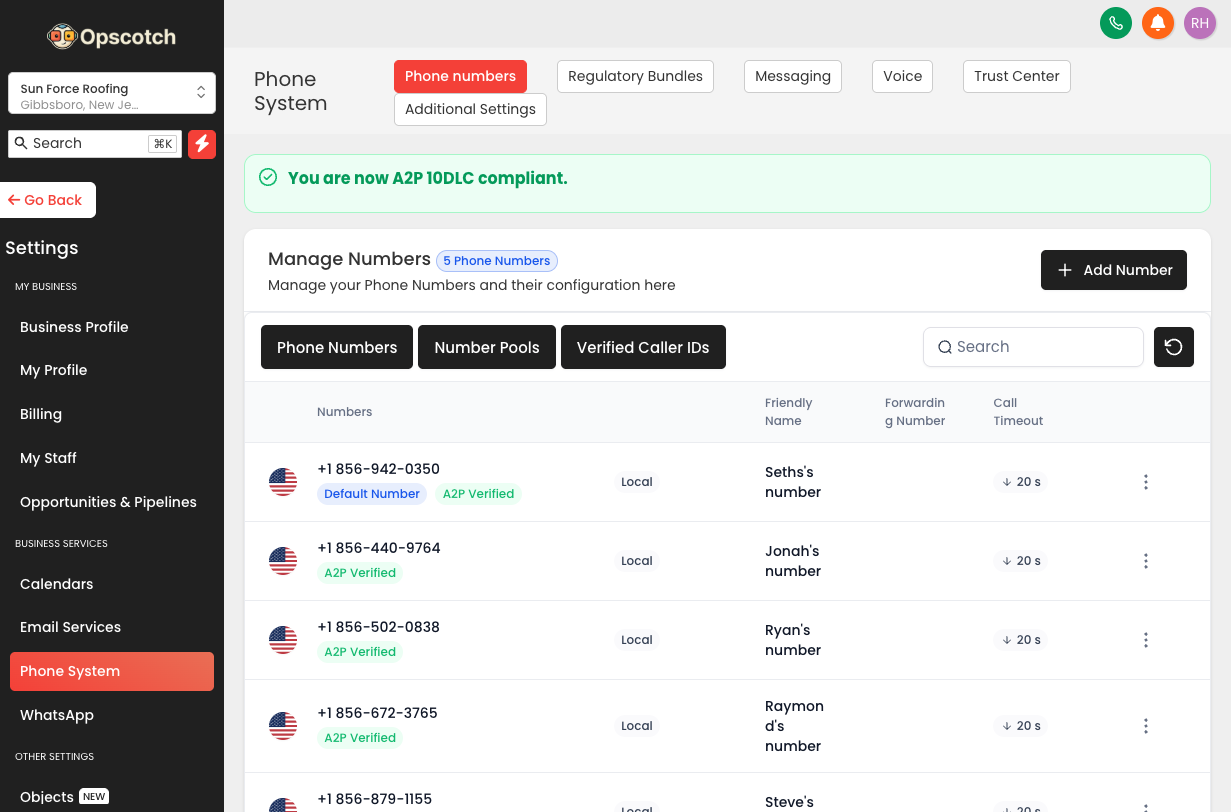
Each rep should have their own dedicated Opscotch number. This keeps their personal cell private and makes sure all calls and texts route through the system.
1.
Log in as Admin โ†’ Settings โ†’ Phone Systems.
2.
Click + Add Number (top right).
3.
Select Add Phone Number from dropdown.
4.
Select country: United States.
5.
Click Filters โ†’ enter area code (e.g. 732, 908 for NJ) โ†’ Number Type: Local โ†’ Capabilities: โœ… SMS โœ… Voice.
6.
Browse available numbers โ†’ click Refresh Results for more options.
7.
Select the number โ†’ click Proceed to Buy.
๐Ÿ“ NJ Area Codes
Use local numbers for higher answer rates
732
848
908
973
862
609
856
โš 
Identity verification: If prompted for Persona ID check, this is a one-time verification per account to comply with carrier regulations. It takes about 2 minutes.

Assigning a Phone Number to a Rep

Route inbound calls directly to the right person

Once a number is purchased, you assign it to a specific rep so all inbound calls route directly to them.

โš 
One number per rep, one rep per number. You cannot split a number across multiple people.
1.
Settings โ†’ My Staff.
2.
Find the rep โ†’ click Edit (pencil icon).
3.
Scroll to Call & Voicemail Settings section โ†’ expand it.
4.
Find Inbound Number dropdown โ†’ select the purchased number.
5.
Click Save.
After assigning:
โœ“Inbound calls to that number ring the rep directly
โœ“Outbound calls from Opscotch show that number as caller ID
โœ“Texts to that number go into the rep's conversation inbox

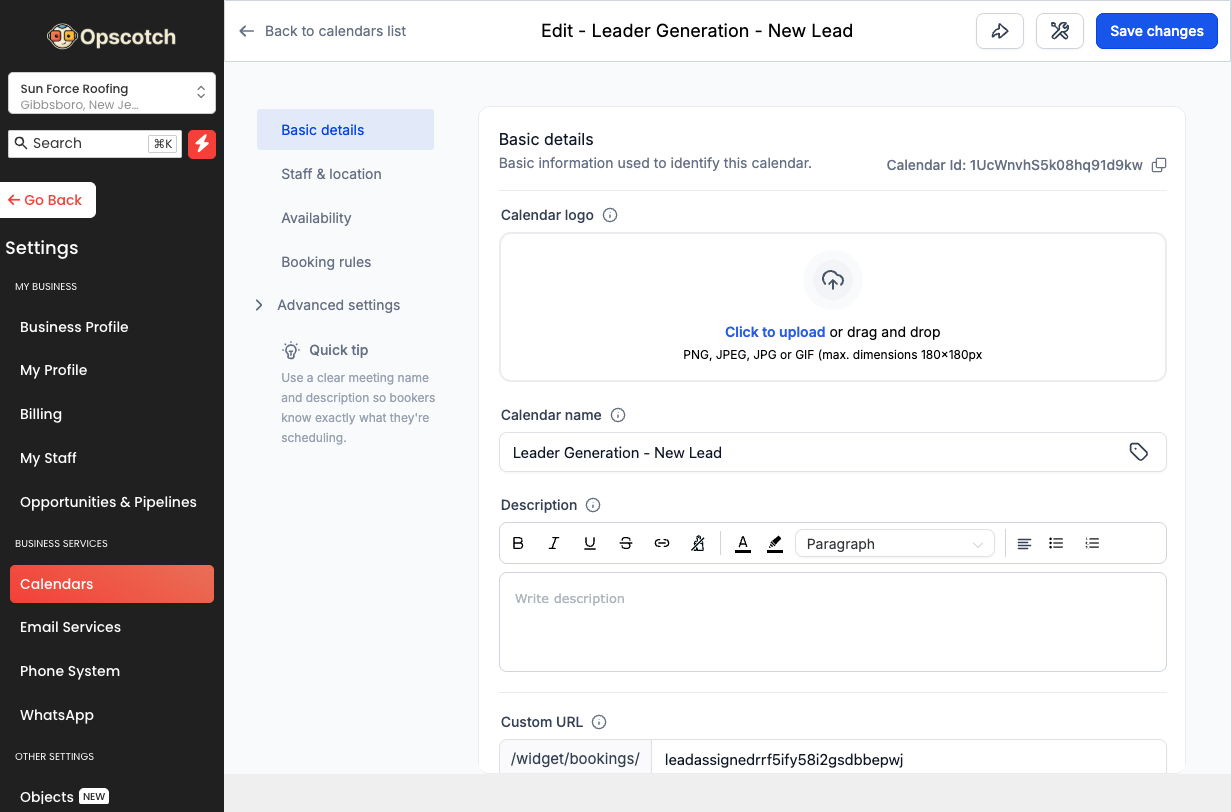
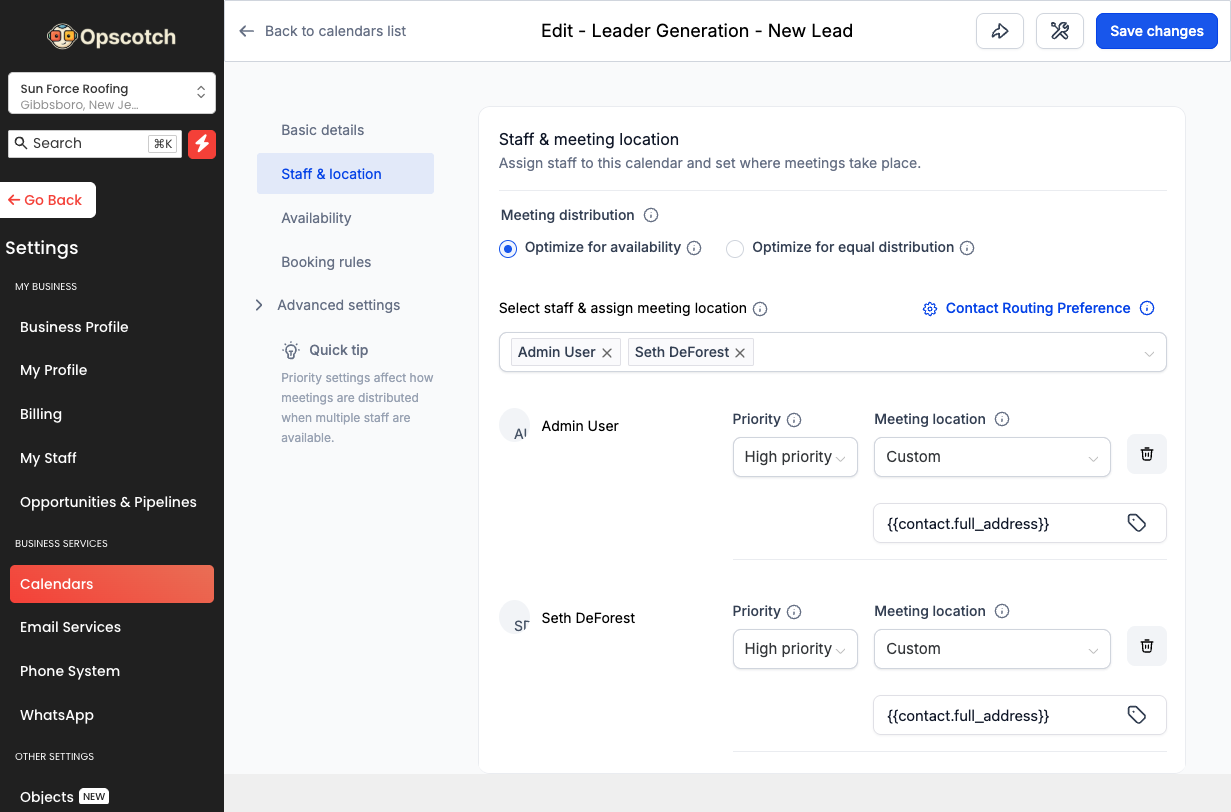
Adding People to a Calendar

Managing existing calendars and creating new ones

Use this when adding a new rep to an existing calendar (like the round-robin) or creating a new calendar.
A โ€” Adding a Rep to an Existing Calendar
1.
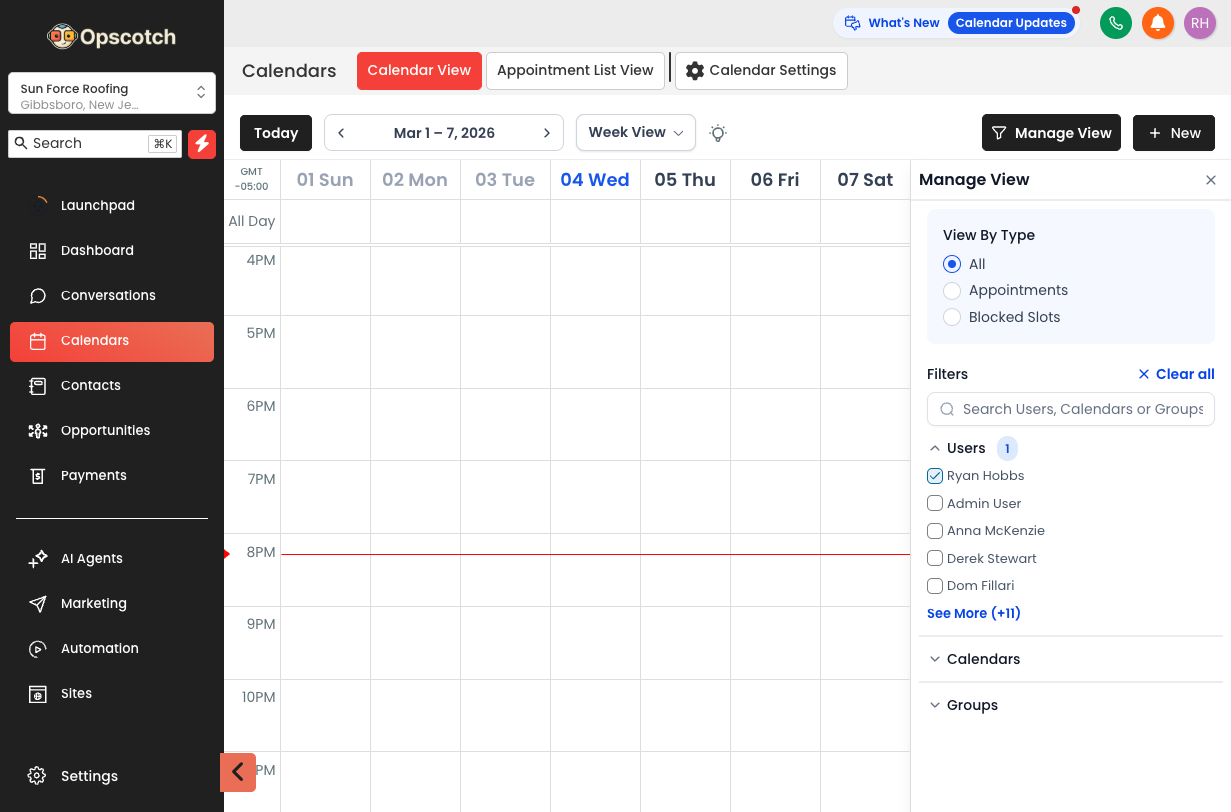
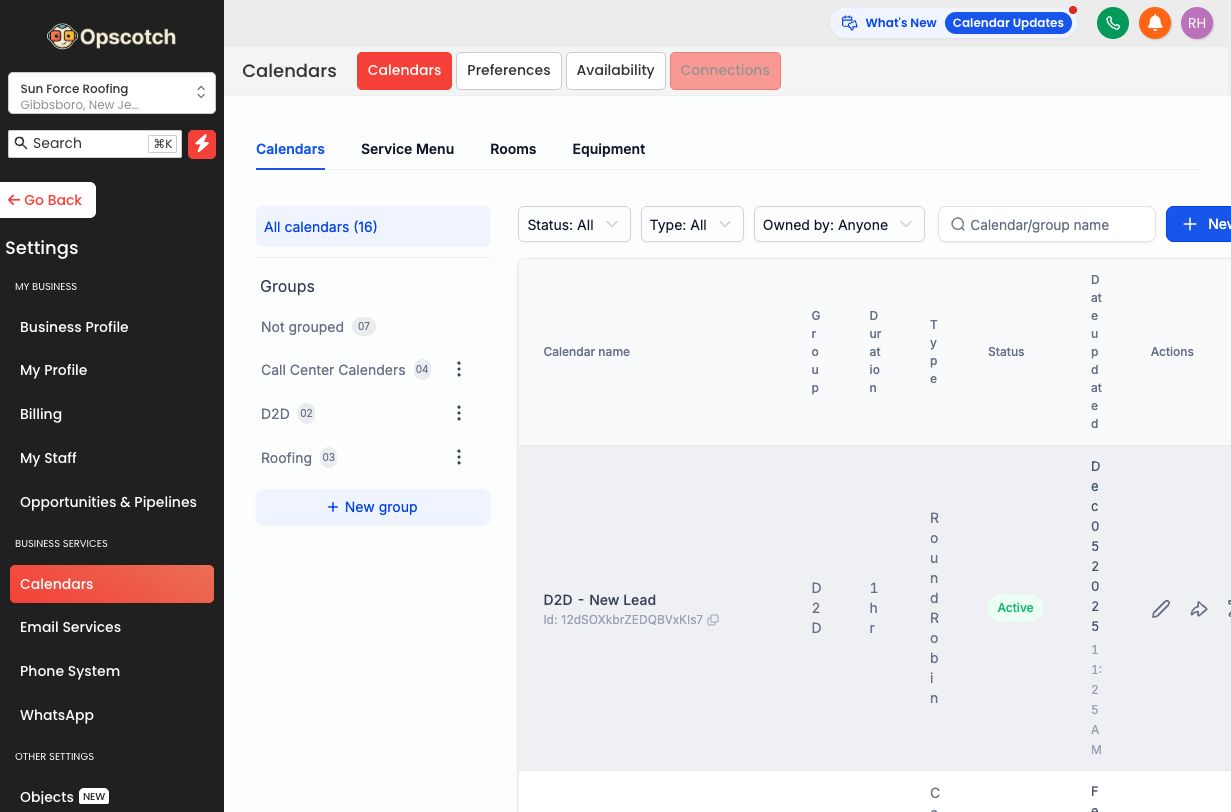
Calendars (left sidebar).
2.
Find calendar โ†’ three-dot menu (โ‹ฎ) โ†’ Edit.
3.
Inside editor โ†’ Team Members section โ†’ + Add User โ†’ search rep โ†’ select.
4.
Set availability if prompted.
5.
Click Save.
๐Ÿ’ก
Adding a rep here automatically includes them in the rotation from the moment you save. Make sure their Google Calendar is linked first so availability is accurate.
B โ€” Removing a Rep

Same steps โ€” in Team Members section, click X or Remove next to their name, then Save.

โš 
Removing a rep from a calendar does NOT delete their existing appointments.
C โ€” Creating a Brand New Calendar
1.
Calendars โ†’ + Create Calendar.
2.
Choose type: Standard (single person) / Round Robin (distributed across reps) / Class/Group (group events โ€” rarely needed).
3.
Name the calendar (e.g. โ€œSeth โ€” Solar Consultationโ€).
4.
Add the rep in Team Members section.
5.
Set availability (days and hours).
6.
Set meeting duration (30, 45, or 60 minutes).
7.
Save.

Quick Reference

Common tasks and where to find them

Add a new rep
Settings โ†’ My Staff โ†’ + Add Employee
Resend login invite
Settings โ†’ My Staff โ†’ 3-dot menu โ†’ Resend Invite
Link Google Calendar
Calendars โ†’ Calendar Settings โ†’ Connections โ†’ + Add New
Set up conflict checking
Calendars โ†’ Calendar Settings โ†’ Conflict Calendars
Sync rep email
Settings โ†’ My Profile โ†’ Email (2-Way Sync) โ†’ Gmail โ†’ Connect
Buy a phone number
Settings โ†’ Phone Systems โ†’ + Add Number
Assign number to rep
Settings โ†’ My Staff โ†’ Edit User โ†’ Call & Voicemail Settings
Add rep to calendar
Calendars โ†’ Edit Calendar โ†’ Team Members โ†’ + Add User
Edit rep permissions
Settings โ†’ My Staff โ†’ Edit User โ†’ Roles & Permissions
Only show rep their leads
Settings โ†’ My Staff โ†’ Edit User โ†’ Toggle "Only Assigned Data" ON